
Setting Up Microsoft Outlook Express
Step 1:
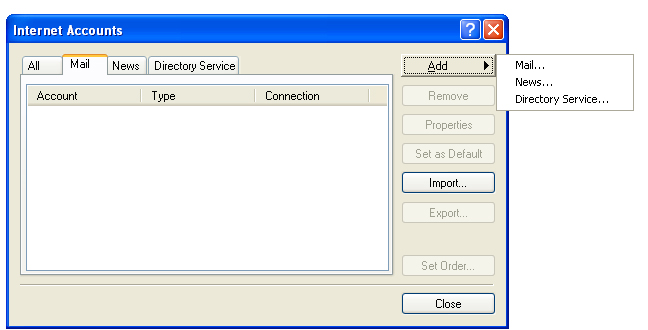
With Microsoft Outlook Express program open, click on "Tools" on the menu bar ;
Then Click on Accounts ; Then click on Add; Then click on Mail.
With Microsoft Outlook Express program open, click on "Tools" on the menu bar ;
Then Click on Accounts ; Then click on Add; Then click on Mail.
Step 2:
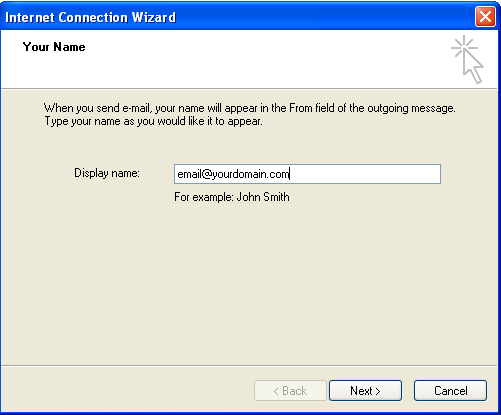
Enter your complete email address, then click Next.
Enter your complete email address, then click Next.
Step 3:
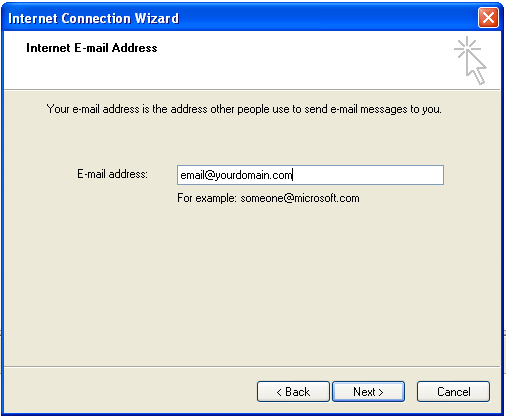
Re-Enter your full email address, then click Next.
Re-Enter your full email address, then click Next.
Step 4:
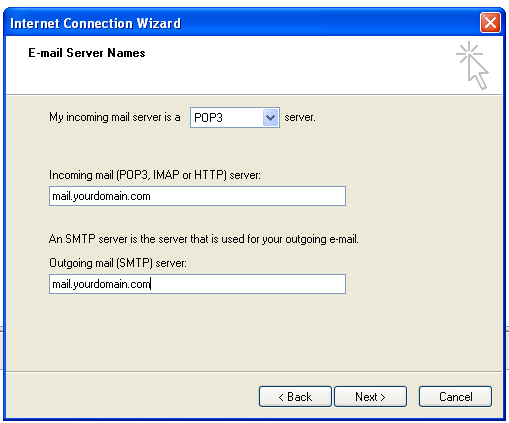
Complete in the info as shown, then click Next.
Complete in the info as shown, then click Next.
Step 5:
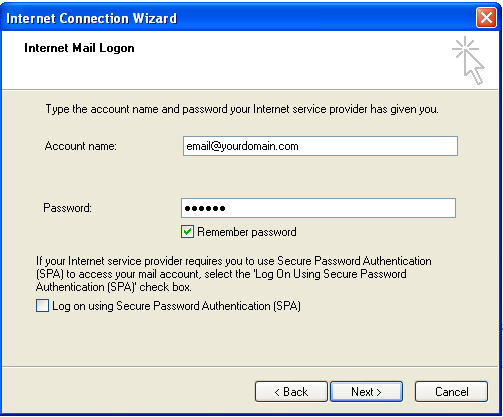
In the Account Name field, enter your full email address.
Enter your new password. Then click Next.
In the Account Name field, enter your full email address.
Enter your new password. Then click Next.
Step 6:
Click Finish.
Click Finish.
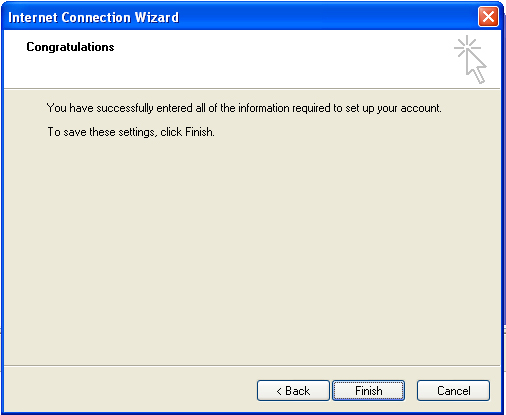
However, you're not done yet. (Good 'ol Microsoft).
Step 7:
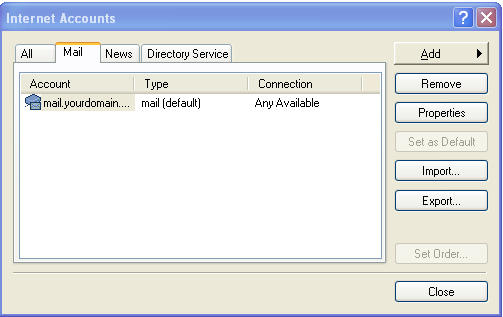
With the Internet Account box still open, click (once) on your new email account. That will highlight it to blue. Then click on Properties.
Step 7:
With the Internet Account box still open, click (once) on your new email account. That will highlight it to blue. Then click on Properties.
Step 8:
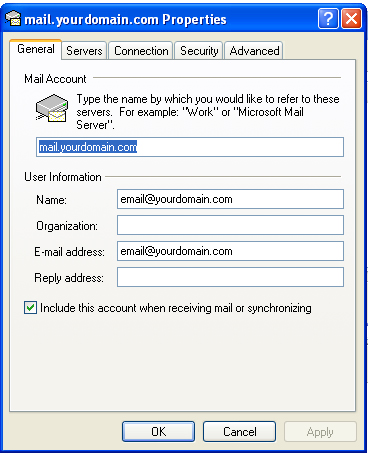
Under the General tab, verify that all the information is correct.
Optionally, you may also complete in your Organization's name and reply email address (if different). Then click on Servers tab.
Under the General tab, verify that all the information is correct.
Optionally, you may also complete in your Organization's name and reply email address (if different). Then click on Servers tab.
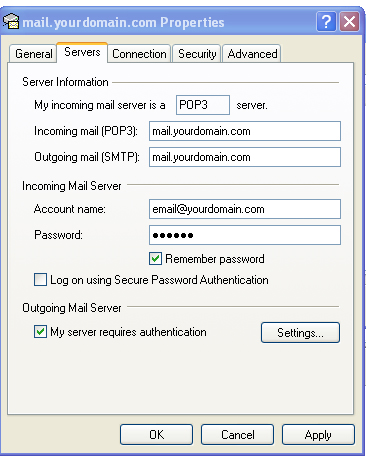
Step 9:
Under Outgoing Mail Server, check off the box that says "My server requires authentication". Click Apply, then Click OK.
Under Outgoing Mail Server, check off the box that says "My server requires authentication". Click Apply, then Click OK.
This will bring you back to the Internet Accounts box.
Click Close. Now you're finished.
Click Close. Now you're finished.
Once that is done, you can then logout and close your browser, or you can check mail thru the Web Mail.
(This Web Mail login process is how you can send and receive mail remotely when you are not at your own computer)
(This Web Mail login process is how you can send and receive mail remotely when you are not at your own computer)

Step 3:
Enter in your new password in both places.
The password is case sensitive.
Click Save when done.
Enter in your new password in both places.
The password is case sensitive.
Click Save when done.

Step 2:
Once logged in, click on Security & Password
Once logged in, click on Security & Password

Email Set Up for Microsoft Outlook Express
For Outlook, Click HERE
For Outlook, Click HERE











Step 10: Most important section
Incoming Server (POP3): Enter 995
Check "This server requires an encrypted connection (SSL)"
Outgoing Server (SMTP): Enter 465
Change encrypted connection type to: SSL
Delivery:
Be sure to keep a checkmark on Leave a Copy of the message on the server
AND UNCHECK the box to remove from server after ___ days
This way the emails are still accessible on the server.
Then Click OK when completed.
Incoming Server (POP3): Enter 995
Check "This server requires an encrypted connection (SSL)"
Outgoing Server (SMTP): Enter 465
Change encrypted connection type to: SSL
Delivery:
Be sure to keep a checkmark on Leave a Copy of the message on the server
AND UNCHECK the box to remove from server after ___ days
This way the emails are still accessible on the server.
Then Click OK when completed.
